QR code logo upload FAQ
QR code logo FAQ
This FAQ explains how to get logo support enabled on your account and how to add a logo to a QR code in QuiQR Codes.
How do I enable logo upload?
Logo upload is available on the Core plan.
If you have not yet upgraded your plan, you will see a button that links you to the "Plans" page of the app so that you can upgrade.
How do I upload a logo to a QR code?
In your Shopify admin, go to Apps and select QuiQR Codes.
From the Dashboard, select Create QR Code, or open Manage QR Codes and choose an existing code to open Edit QR Code.
On the QR code setup or edit screen, scroll to Custom Logo. In Image Upload, select Add file and upload your logo. Supported file types are .jpg, .png, and .webp, up to 5MB.
Check the preview, then select Save. You can then use Download QR Code if needed.
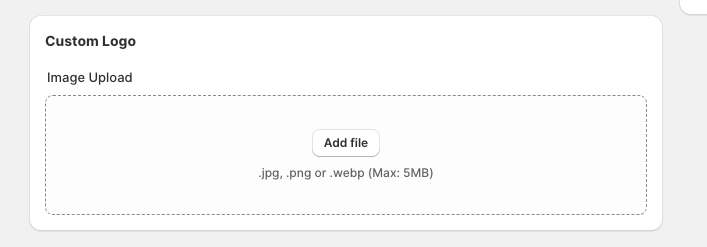
Keep file size in mind when uploading your logo. The maximum file size is 5MB, but larger files can slow down page speed if the QR code is shown on your website.
Can I add a logo to a new QR code and an existing one?
Yes. After the feature is enabled, you can add a logo while creating a new code with Create QR Code or when updating an existing code from Manage QR Codes in the Edit QR Code screen.
What should I check before I use the QR code?
Make sure your QR code still looks clear in the preview and test it on a phone before printing or sharing it widely.
If the logo is too large or the design has poor contrast, scanning may be less reliable.