Customise a QR Code
Overview: where customisation happens
In QuiQR Codes, you customise a QR code from the Edit QR Code screen. As you update settings like colours and Code Shape, the Preview updates so you can confirm it still scans before downloading.
1. Start from the Dashboard
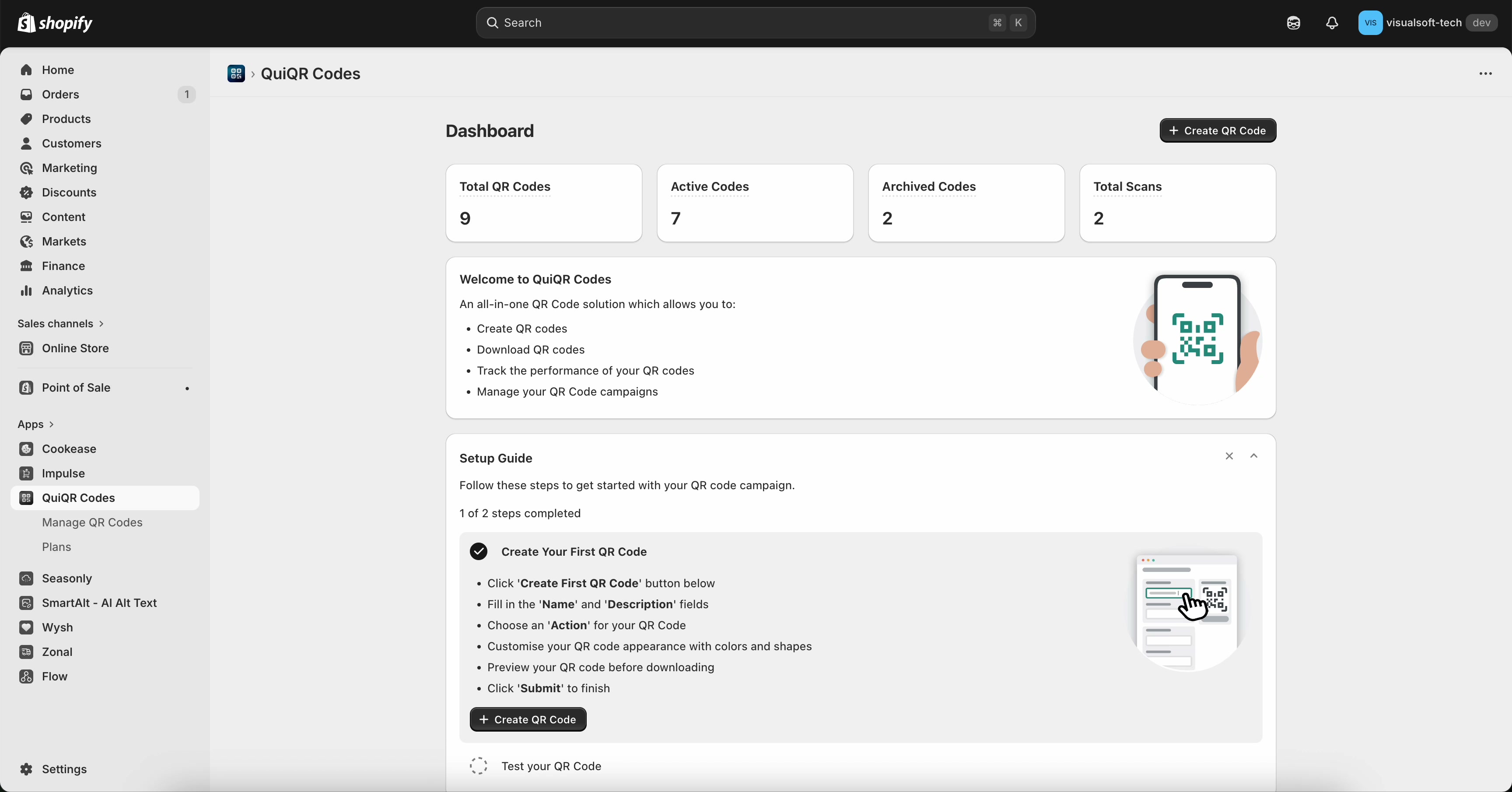
From the Dashboard, you can quickly confirm you’re in the right store and app, and see high-level stats like Total QR Codes, Active Codes, Archived Codes, and Total Scans.
To create a brand-new code (instead of editing an existing one), select Create QR Code in the top-right.
To customise an existing code, go to the manager list next.
2. Open the QR Code Manager
In the left navigation under QuiQR Codes, select Manage QR Codes to open the QR Code Manager list.
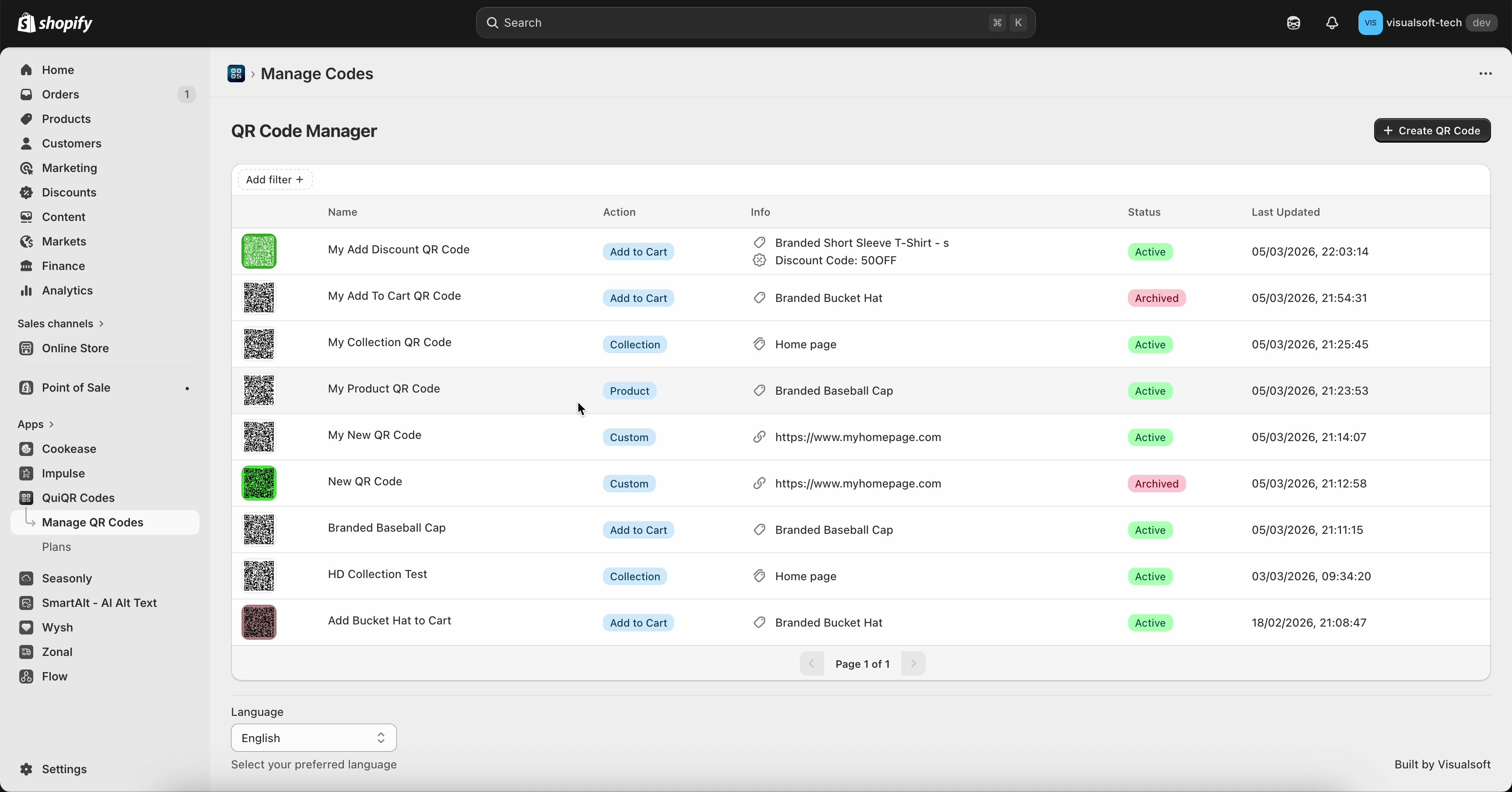
The table helps you identify the right code using:
Name (your internal label for the code)
Action (what the QR code does, such as Add to Cart, Collection, Product, or Custom)
Status (for example, Active or Archived)
Last Updated
If you have lots of codes, use Add filter + to narrow the list before you open the one you want to customise.
3. Enter Edit QR Code and confirm the basics
Select the QR code you want to update to open Edit QR Code.
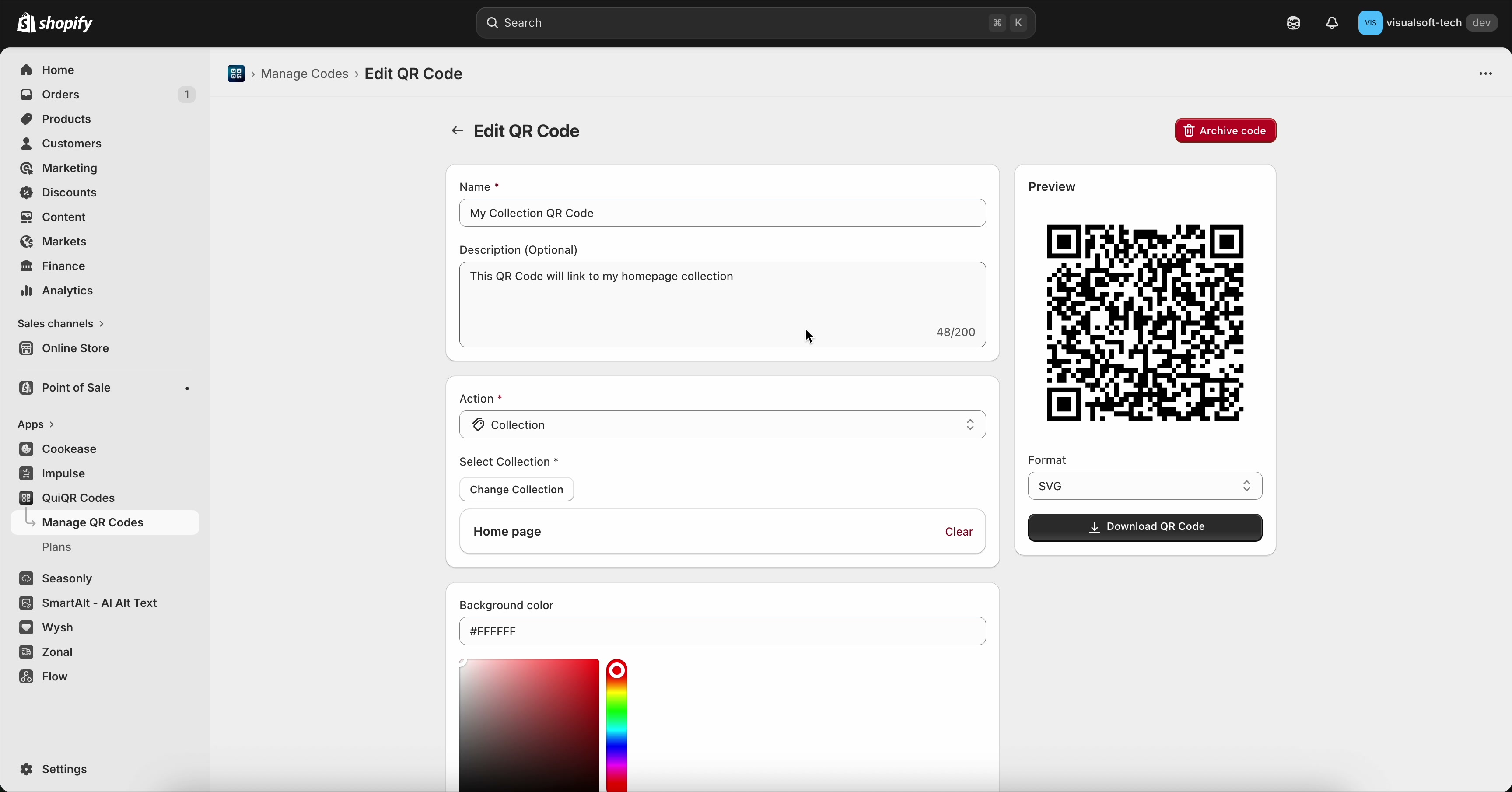
On this page, review (and update if needed):
Name (required)
Description (Optional)
Action (required). For example, Collection.
If your action requires a target, choose it (for example, Select Collection with Change Collection).
The Preview panel on the right shows what your QR code will look like as you customise it.
4. Customise the QR code design
Scroll to the design section to update colours and shape. The Preview updates as you make changes.
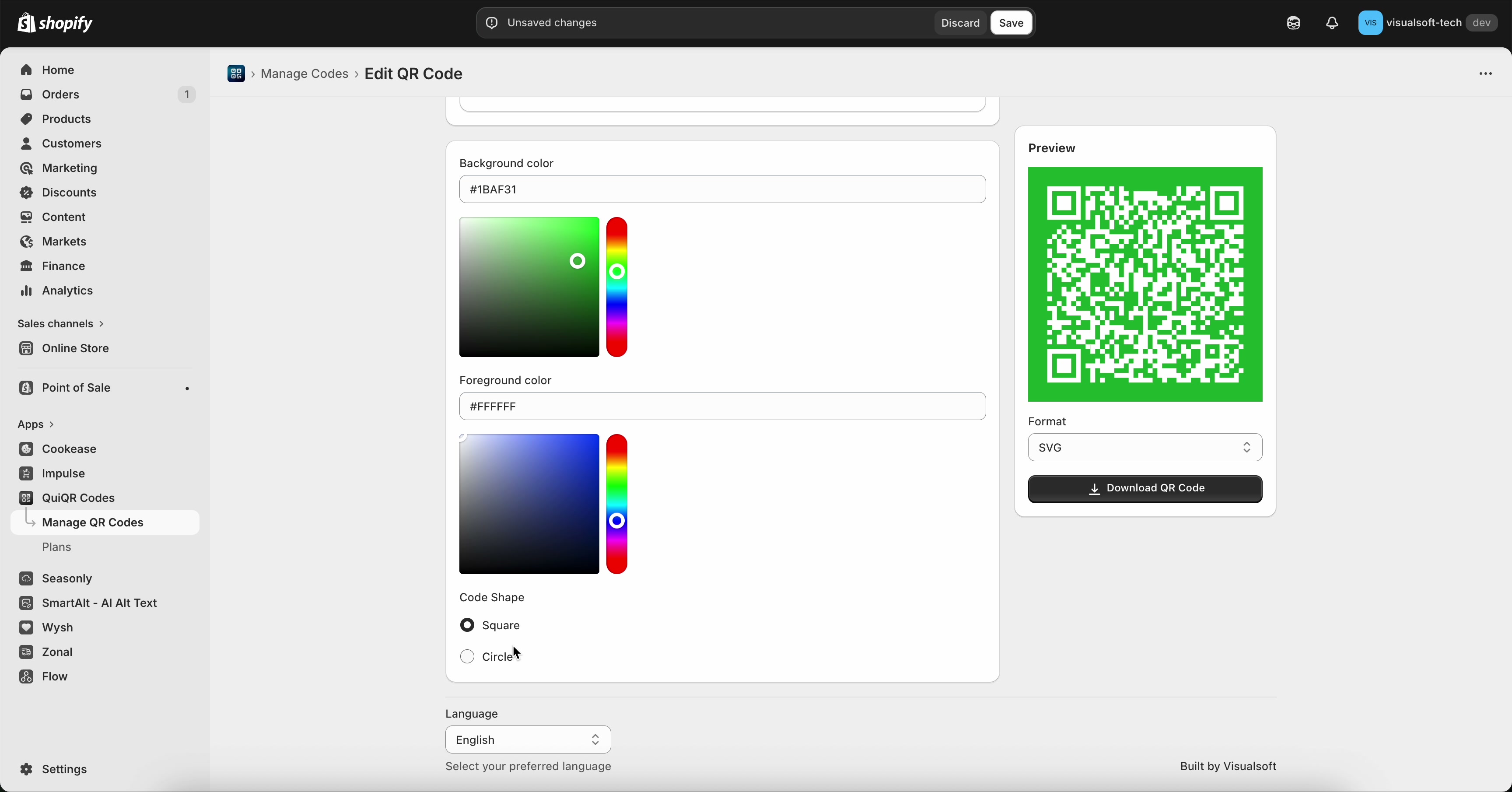
Under Background colour, enter a hex value (for example, #FFFFFF) or use the colour picker to choose a colour.
Under Foreground colour, enter a hex value or use the colour picker. This controls the colour of the QR pattern itself.
In Code Shape, select Square or Circle to change the style of the QR modules.
High contrast matters. If the background and foreground colours are too similar, some devices may not be able to scan the code reliably. Always confirm the result in Preview before downloading.
5. Save, then download
When you’re happy with the design:
Select Save in the top bar (you may also see Discard if there are unsaved changes).
In the Preview panel, choose a file type from Format (for example, SVG).
Select Download QR Code.
If you no longer want a code available for use, select Archive code on the Edit QR Code page. Archived codes remain listed in the manager with an Archived status.