Download a QR code
Download a QR code file
This guide shows where to find your saved QR codes and download them in PNG or SVG format.
In your Shopify admin, open Apps → QuiQR Codes → Manage QR Codes.
You’ll see the QR Code Manager list with each code’s Name, Action, Status, and Last Updated.
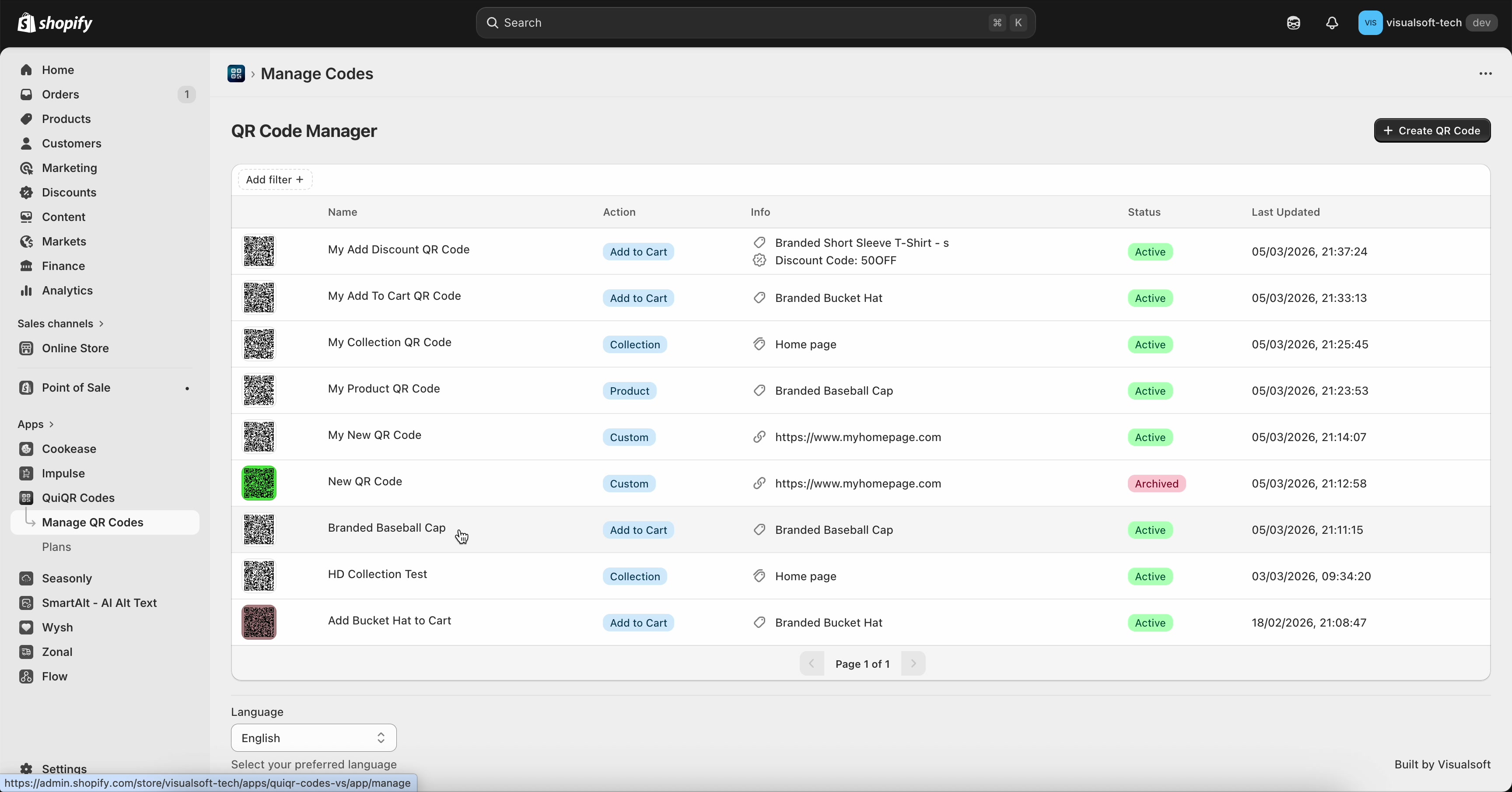
Click the QR code you want to export to open the Edit QR Code page.
On the right side, in the Preview panel, find the Format dropdown and the Download QR Code button.
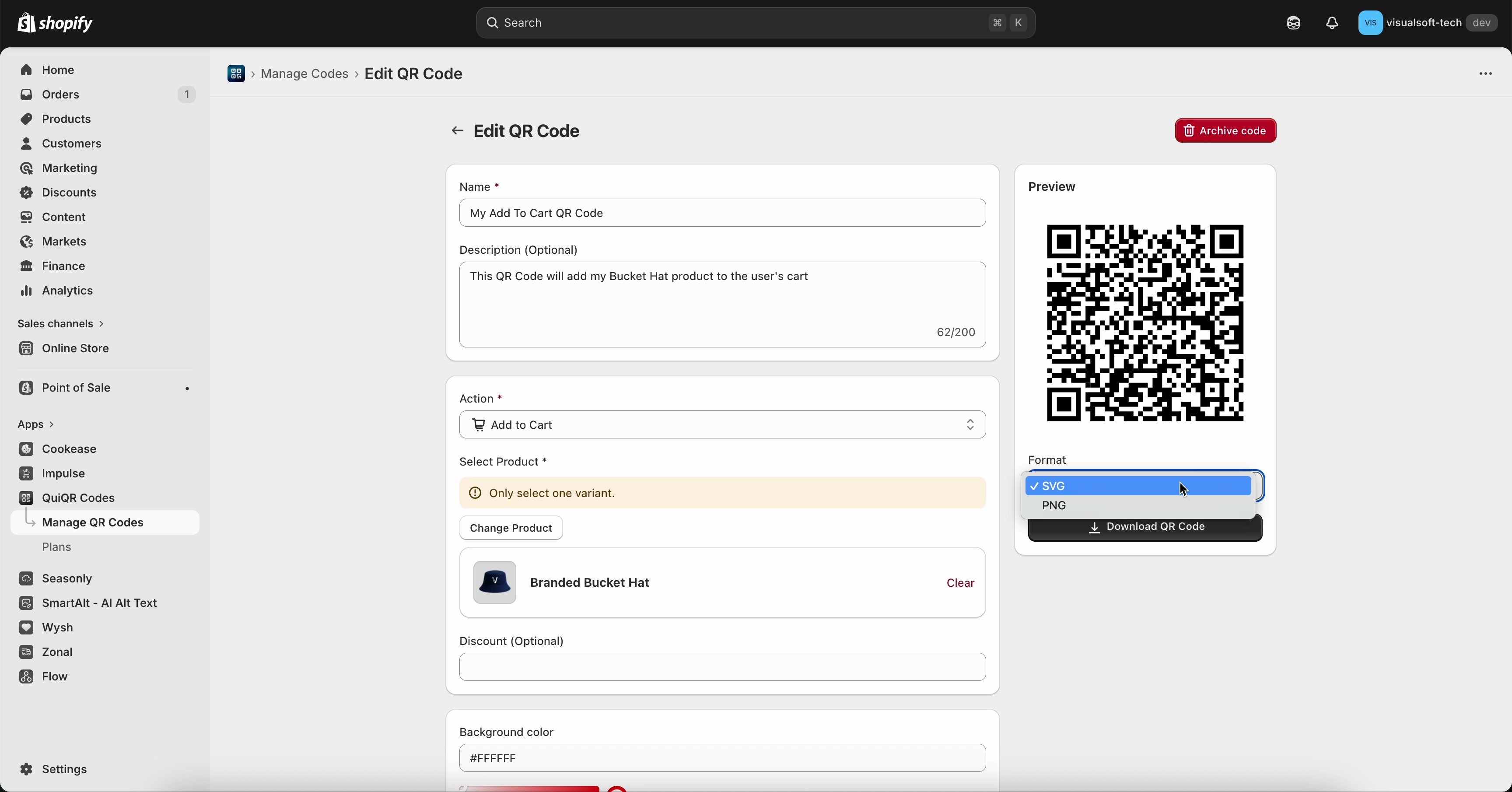
In the Preview panel, open Format and select:
PNG for most uses (web, email, documents)
SVG for scalable, print-ready artwork (best for large signage)
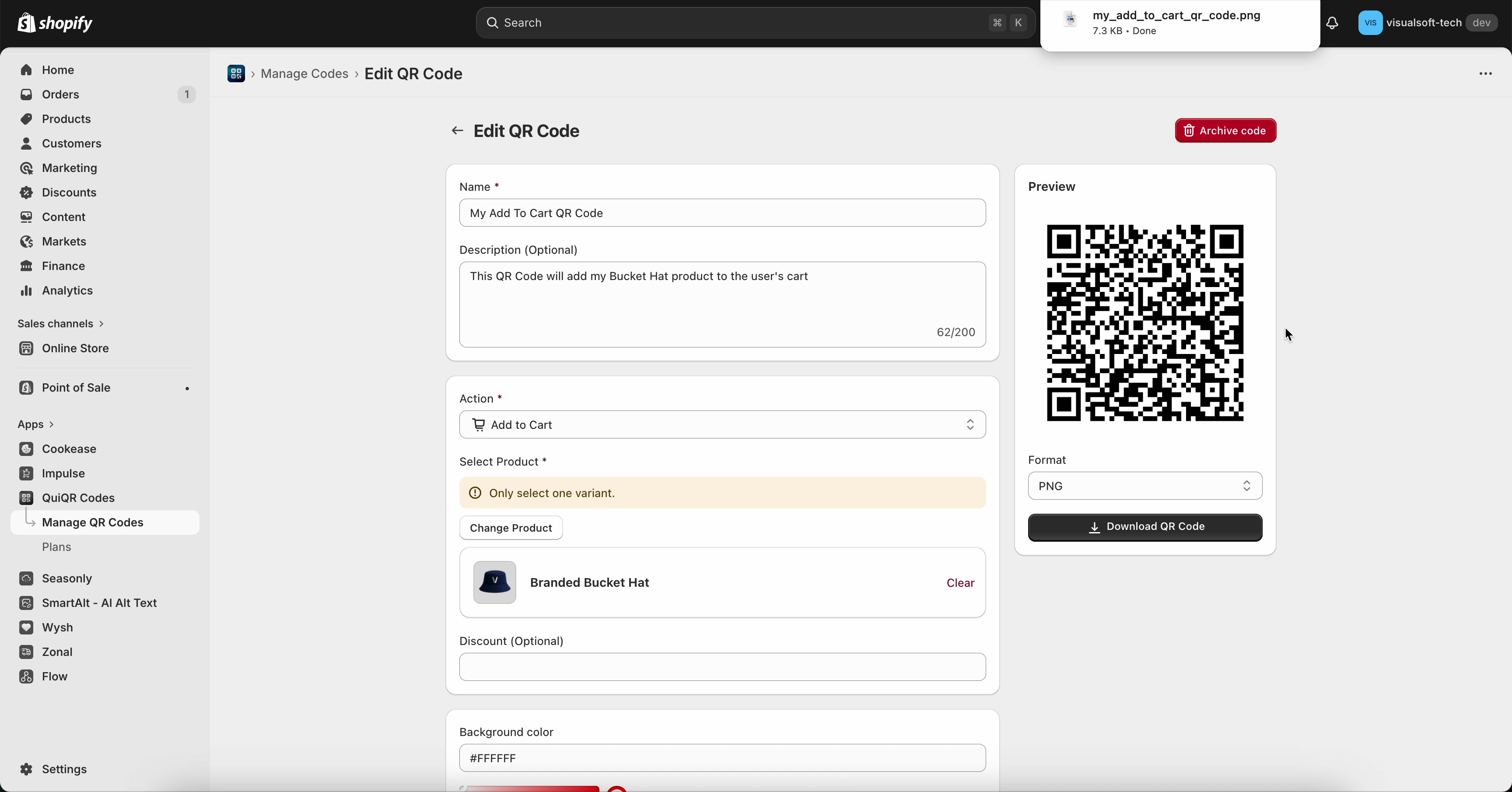
Click Download QR Code. Your browser will start downloading the file (for example, my_add_to_cart_qr_code.png) and it will appear in your browser’s downloads area.
Best results for print: Choose SVG when sending your QR code to a designer or print shop so it stays sharp at any size.
Troubleshooting
Make sure you’re on the Edit QR Code page (breadcrumb: Manage Codes › Edit QR Code) and look in the right-hand Preview panel.
Click Download QR Code again and check your browser’s downloads area.
Disable any browser pop-up/download blockers for your Shopify admin domain, then try again.
PNG is best for quick sharing and most digital uses. SVG is best for professional design and printing because it scales without becoming blurry.
Downloading a QR code exports the image file only. Your QR code settings (like Action and connected product/discount) remain unchanged.