
QR code for a discount
What this QR code does
In QuiQR Codes, you can create a QR code that applies a discount when a customer scans it. To do this, choose Discount code in the Action dropdown, then enter the discount in the Discount code field.
When the QR code is scanned, the customer is taken through a flow where the discount is added to their order.
The Discount code action is only available to stores on the Core plan.
Where to create it
In Shopify admin, open Apps → QuiQR Codes.
From the app dashboard, click Create QR Code.
Or open Manage QR Codes and select an existing code to edit it.
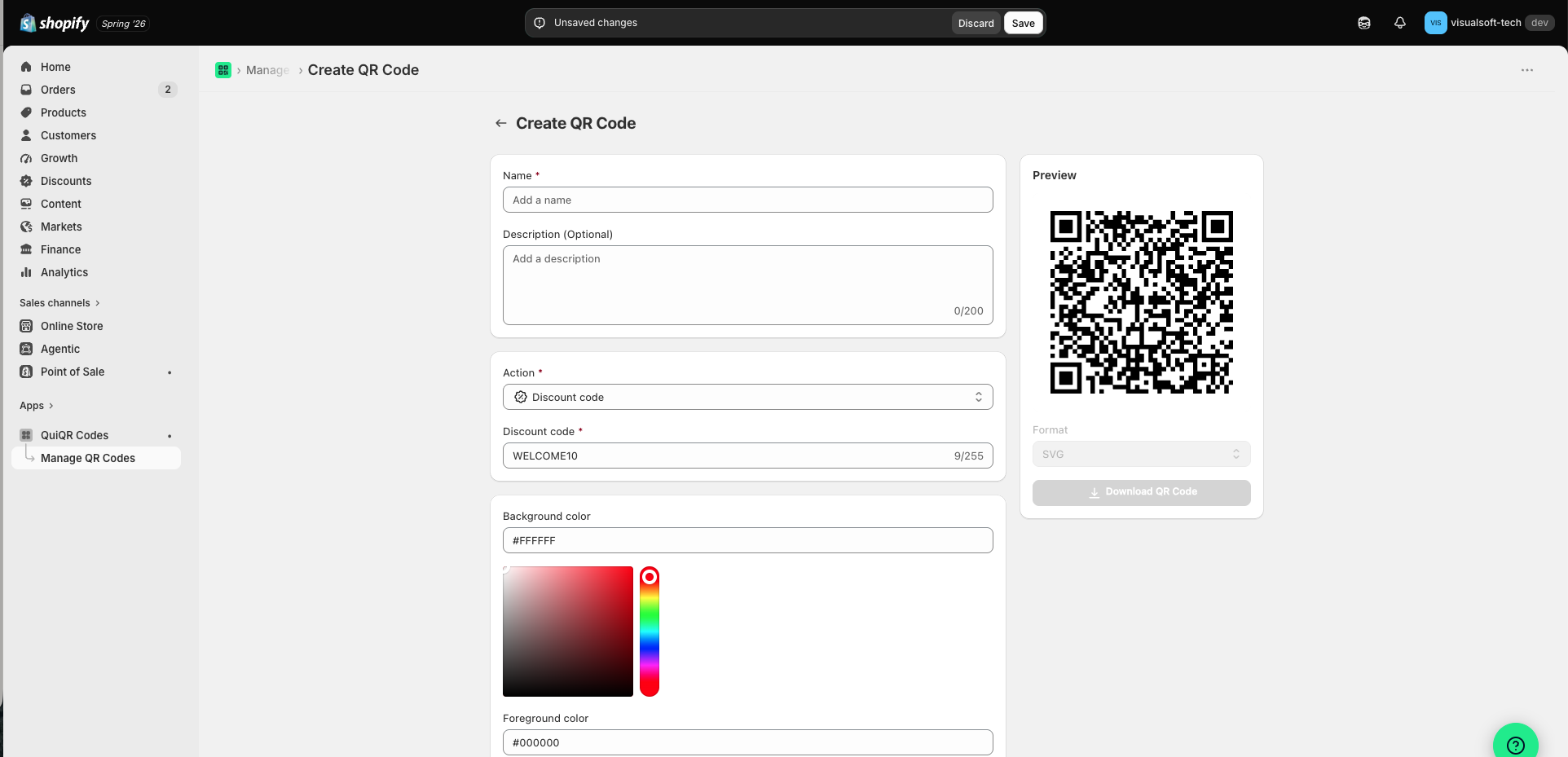
Create a discount QR code
Go to QuiQR Codes and click Create QR Code. This opens the Create QR Code page.
Fill in the basic details for the QR code:
Name — required. This is how the code appears in Manage QR Codes.
Description (Optional) — add internal notes about the campaign, placement, or offer.
In the Action dropdown, select Discount code.
As soon as you choose this option, QuiQR Codes shows an extra field for the discount.
In the Discount code field, enter the Shopify discount code you want customers to use.
Make sure the code is entered exactly as it exists in Shopify.
Use the Preview panel on the right to confirm the QR code is being generated, then click Save in the top bar.
If you do not want to keep your changes, click Discard.
Edit an existing discount QR code
If you already have a QR code and want to change its discount:
Open Manage QR Codes.
Select the QR code you want to update.
On the edit screen, set Action to Discount code.
Update the Discount code field.
Click Save.
What customers experience
When a customer scans the QR code, the discount code is applied to their order flow using the discount you entered in QuiQR Codes.
The QR code only works as expected if the discount code is valid and active in your Shopify store.
Tips for best results
Create the discount in Shopify first, then copy the exact code into QuiQR Codes.
Use a clear Name so you can find the code later in Manage QR Codes.
Check the Preview before saving, especially if you are creating multiple campaign codes.
Troubleshooting
Check that the discount code is active in Shopify and entered exactly the same way in QuiQR Codes.
If the code was changed or expired in Shopify, update it in QuiQR Codes and save again.
Review the fields you entered, especially the Action and Discount code fields. If needed, re-enter the discount code and confirm the preview updates before saving.