
QR code for a POS Discount
What this action does
The POS Discount action lets you create a QR code that applies a Shopify discount code to an eligible Shopify POS order when it is scanned.
POS Discount is available on the Core plan only.
When you select POS Discount in the Action dropdown, a Discount code field appears. Enter the Shopify discount code you want the QR code to apply at checkout.
Before you start
Make sure your app is upgraded to the Core plan.
Create the discount first in Shopify under Discounts.
Confirm the discount is valid for the POS order you want to use it with.
Create a POS Discount QR code
In Shopify admin, go to Apps → QuiQR Codes.
From the app, you can start on the Dashboard and click Create QR Code, or open Manage QR Codes and create a new code there.
On the Create QR Code page, complete the Name field. You can also fill in Description (Optional) to note where the code will be used or which promotion it belongs to.
The Preview panel on the right updates as you build the code.
In the Action dropdown, select POS Discount.
After you choose this action, the Discount code field appears below it.
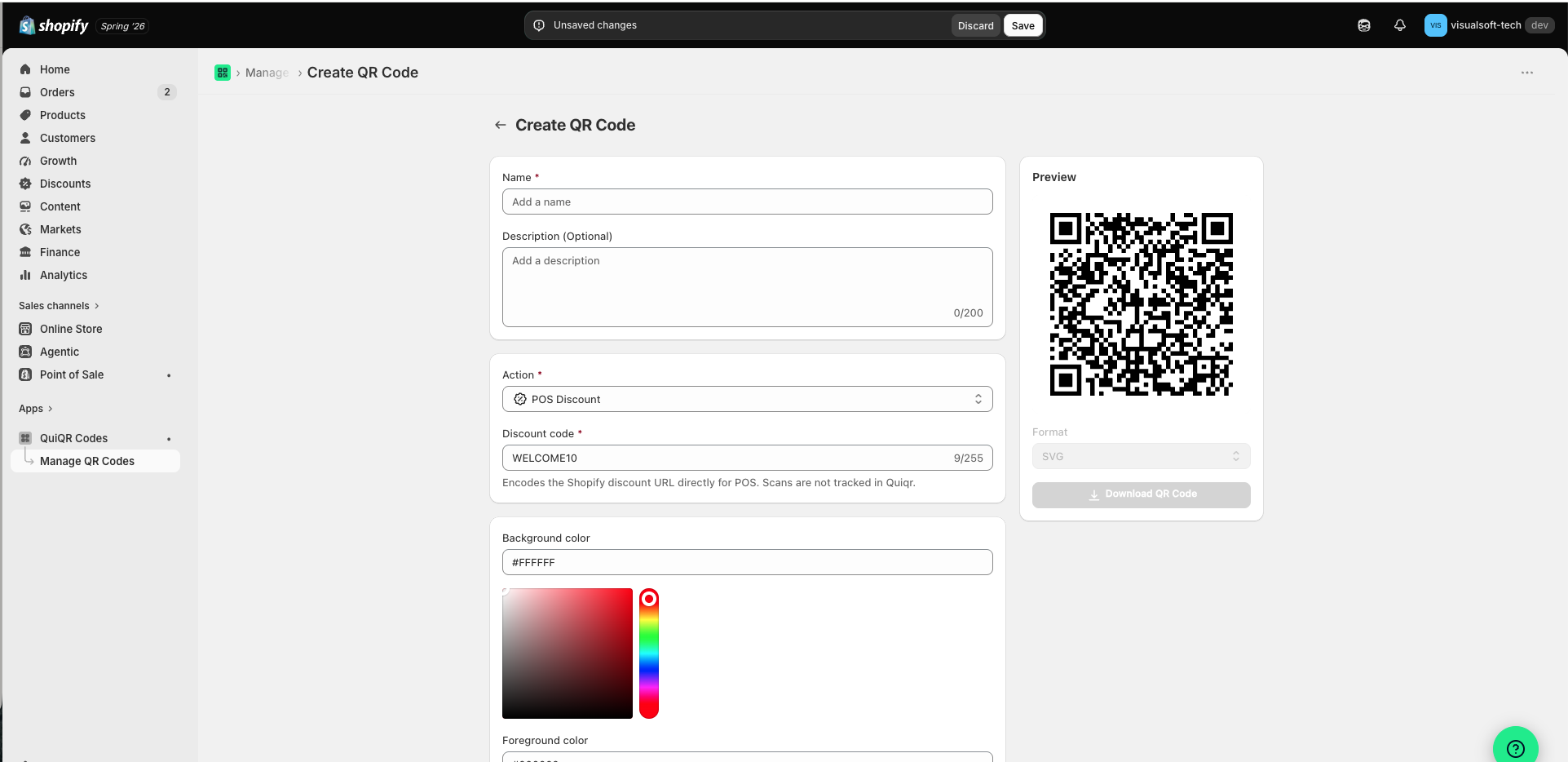
In Discount code, enter the exact Shopify discount code you want to apply, such as WELCOME10.
Enter the code exactly as it exists in Shopify, including the correct spelling and capitalisation.
If needed, adjust the code design using options like Background color and Foreground color.
When you're ready, click Save in the top bar. If you want to leave without keeping changes, click Discard.
Edit an existing code
You can also add or update the POS Discount action on an existing code.
In Shopify admin, go to Apps → QuiQR Codes → Manage QR Codes.
Select the existing QR code you want to edit.
Set Action to POS Discount, enter the value in Discount code, then click Save.
What happens when the code is scanned
When the QR code is scanned in Shopify POS, Shopify uses the encoded discount URL and applies that discount to an applicable POS order.
The discount only applies if the Shopify discount code is valid and the order meets that discount's eligibility rules, such as product restrictions, minimum purchase requirements, usage limits, or active dates.
If you create and download / print a code, and then change the discount code associated with it later, the downloaded and printed code will continue to point to the original destination.
Scans of POS Discount QR codes are not tracked and added to dashboard metrics such as Total Scans.
Troubleshooting
Make sure the discount code exists in Shopify under Discounts.
Check that the code is active and spelled exactly as entered in Discount code.
Confirm the POS order qualifies for that discount.
Scans are not tracked in Quiqr for POS Discount, because the QR code encodes the Shopify POS discount URL directly.