
QR code to a product page
Overview: create a QR code that opens a product page
In QuiQR Codes, you can create a QR code that sends customers to a specific product in your Shopify store. This guide follows the in-app flow from the dashboard to selecting a product and downloading your QR code.
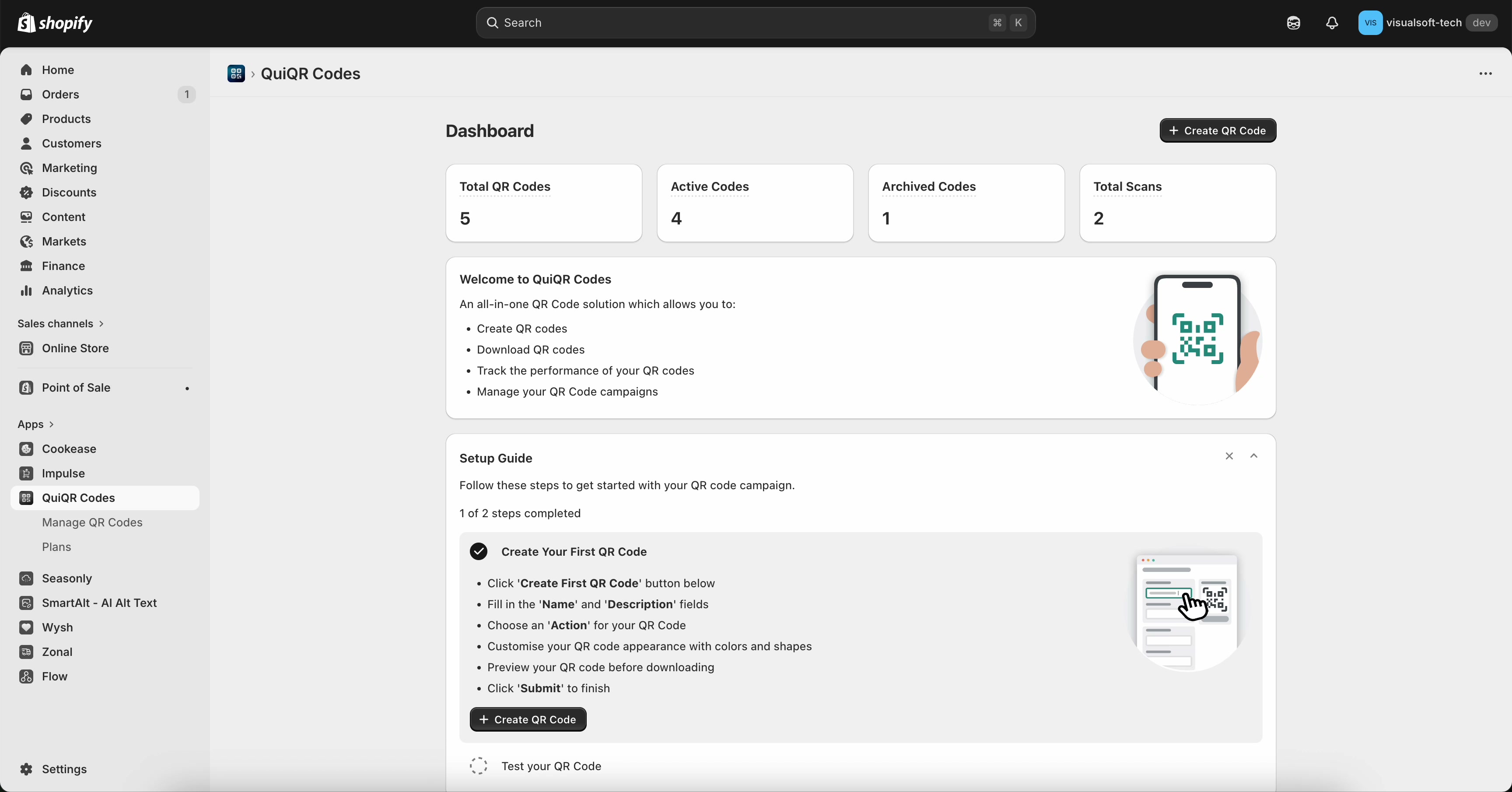
1. Start from the Dashboard
From your Shopify admin, open Apps → QuiQR Codes to land on the Dashboard. This screen shows quick stats like Total QR Codes, Active Codes, Archived Codes, and Total Scans.
To begin creating a product QR code, select Create QR Code (top right).
If you see a Setup Guide card on the dashboard, it also points you to Create QR Code and summarises what you’ll fill in (name, description, action, and preview).
2. Open the Create QR Code form
You’ll be taken to Manage Codes → Create QR Code. The form is on the left, and a live Preview of the QR code is on the right.
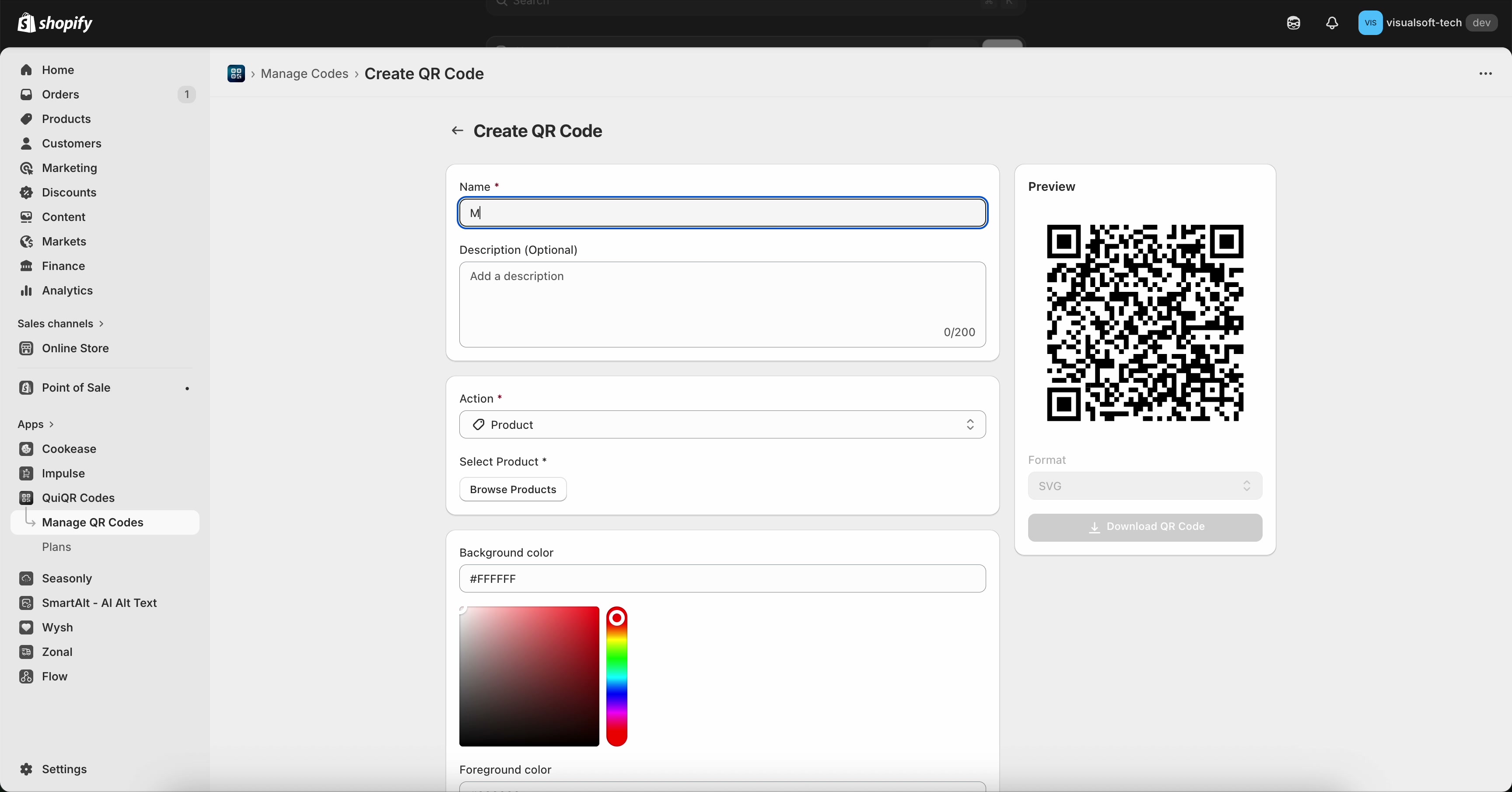
3. Fill in the QR code details
In Name *, enter a clear internal name (for example, My Product QR Code). This helps you find the code later in Manage QR Codes.
Use Description (Optional) to note where you’ll use the code (flyer, product packaging, shelf tag). The field shows a character counter (up to 200).
Use a naming convention like Product – Location – Month (for example, Branded Baseball Cap – In-store display – Mar) so scan results are easier to interpret later.
4. Choose “Product” and select what to link to
In Action *, keep Product selected. This makes the QR code open a product page in your store when scanned.
Under Select Product *, choose Browse Products, then pick the product you want the QR code to link to.
After selection, the product appears in the form, and the button changes to Change Product. You can also use Clear to remove the selected product.
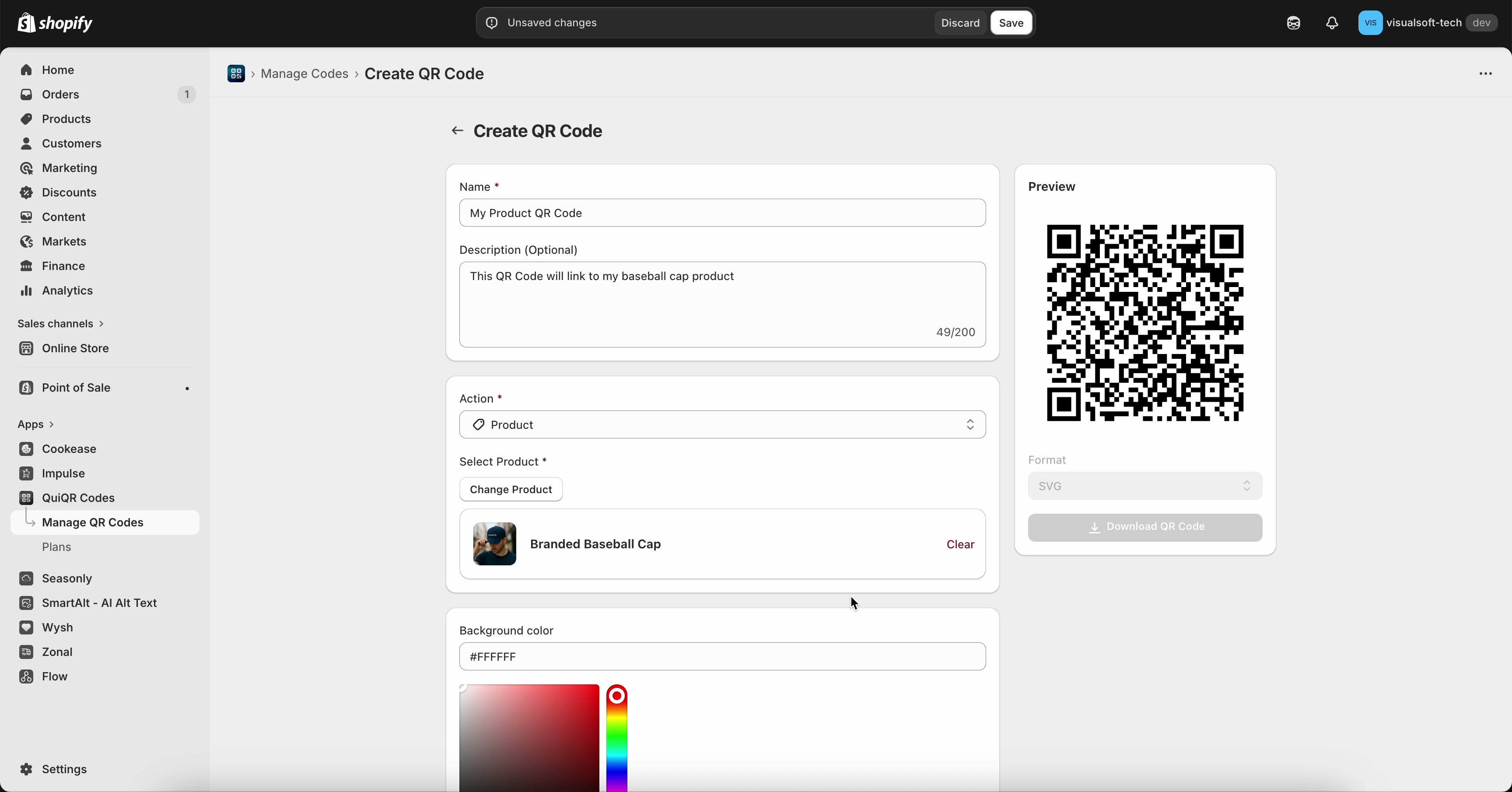
5. Save, then download your QR code
Select Save in the top bar to store the QR code in QuiQR Codes. (If needed, you can select Discard to abandon changes.)
In the Preview panel, choose a file type from Format (for example, SVG), then select Download QR Code.
For reliable scanning, avoid low-contrast colour combinations. If you customise Background colour and Foreground colour, keep a strong contrast between them.
Quick checks before you print
Test scan: scan the downloaded QR code with your phone to confirm it opens the correct product page.
Right product: verify the product shown under Select Product matches what you intended (use Change Product if not).
Keep it readable: if you change colours, re-test scanning after the change.
If the QR code scans but the product doesn’t open
Confirm the product is Active (not draft/archived) and is available on the Online Store sales channel.
If your store has an online store password enabled, customers will be prompted for it when scanning.
Try scanning on a device that is not logged into your Shopify admin to simulate a customer experience.