
QR code to a custom URL
Use QuiQR Codes in Shopify to create a QR code that opens any website you choose (for example, your storefront homepage).
1. Open the QR code creator
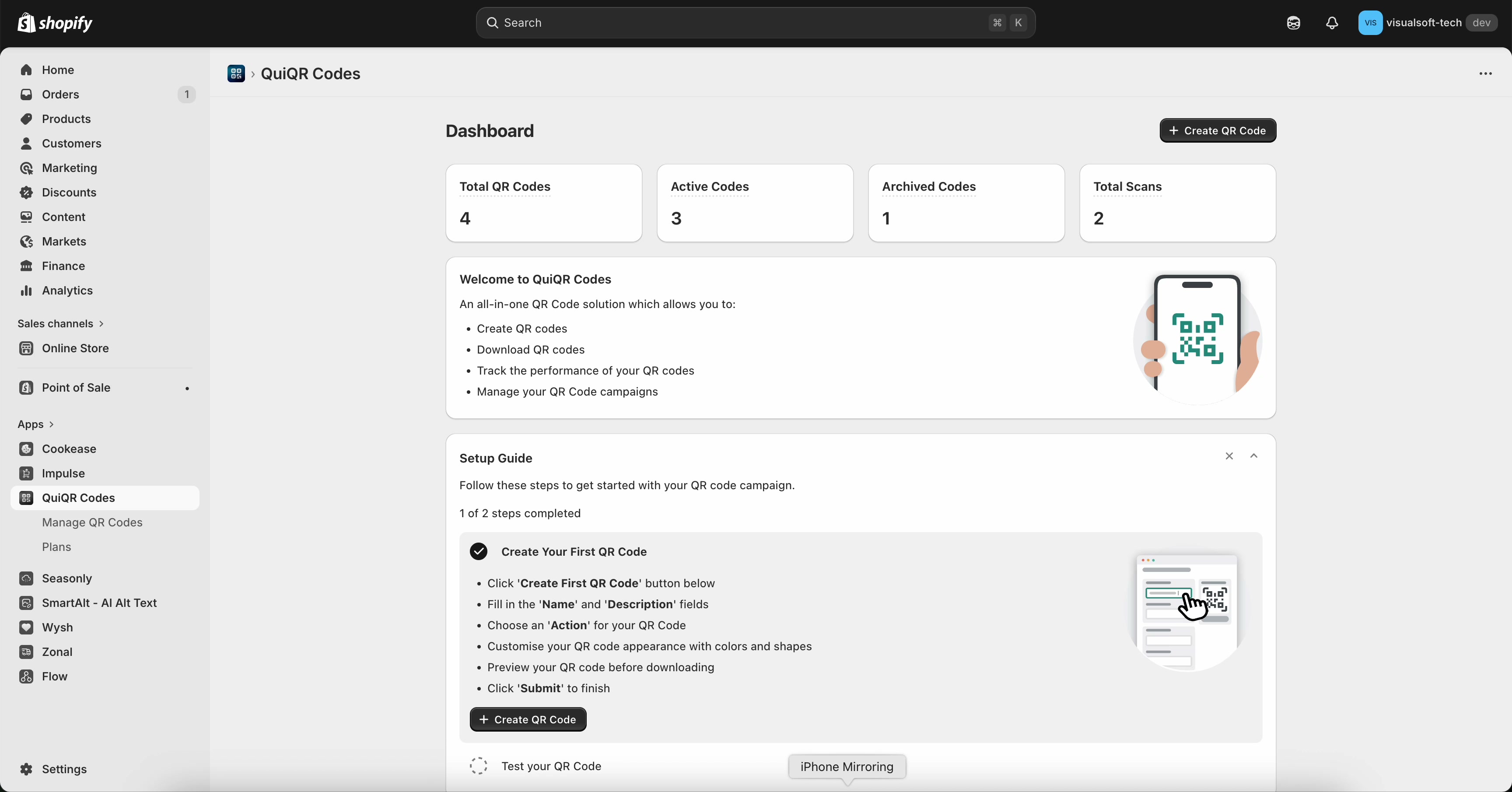
In the Shopify admin sidebar, open Apps and select QuiQR Codes.
From the Dashboard, select Create QR Code (top-right). You can also use the setup guide card if it’s shown.
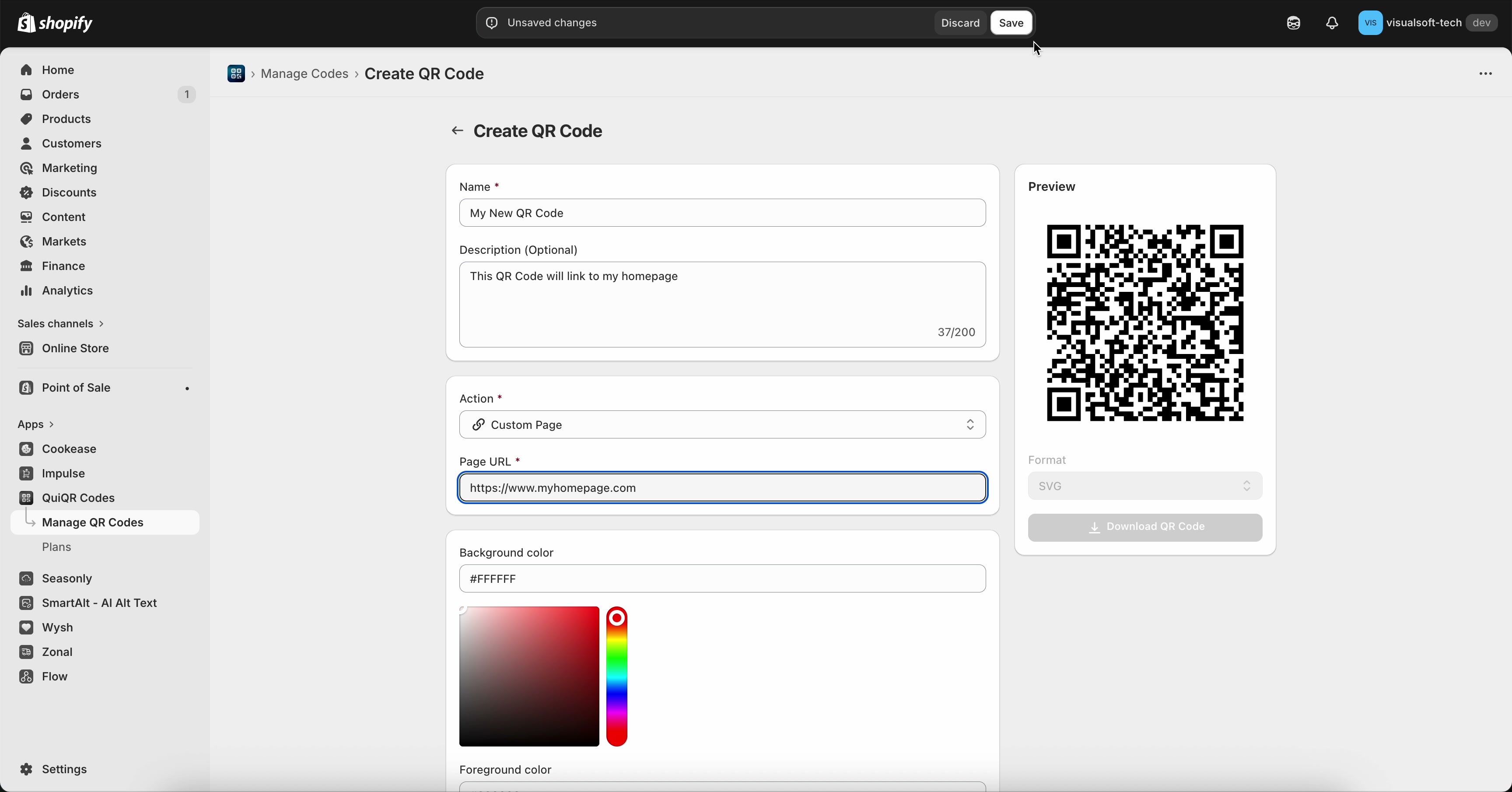
2. Fill in the QR code details
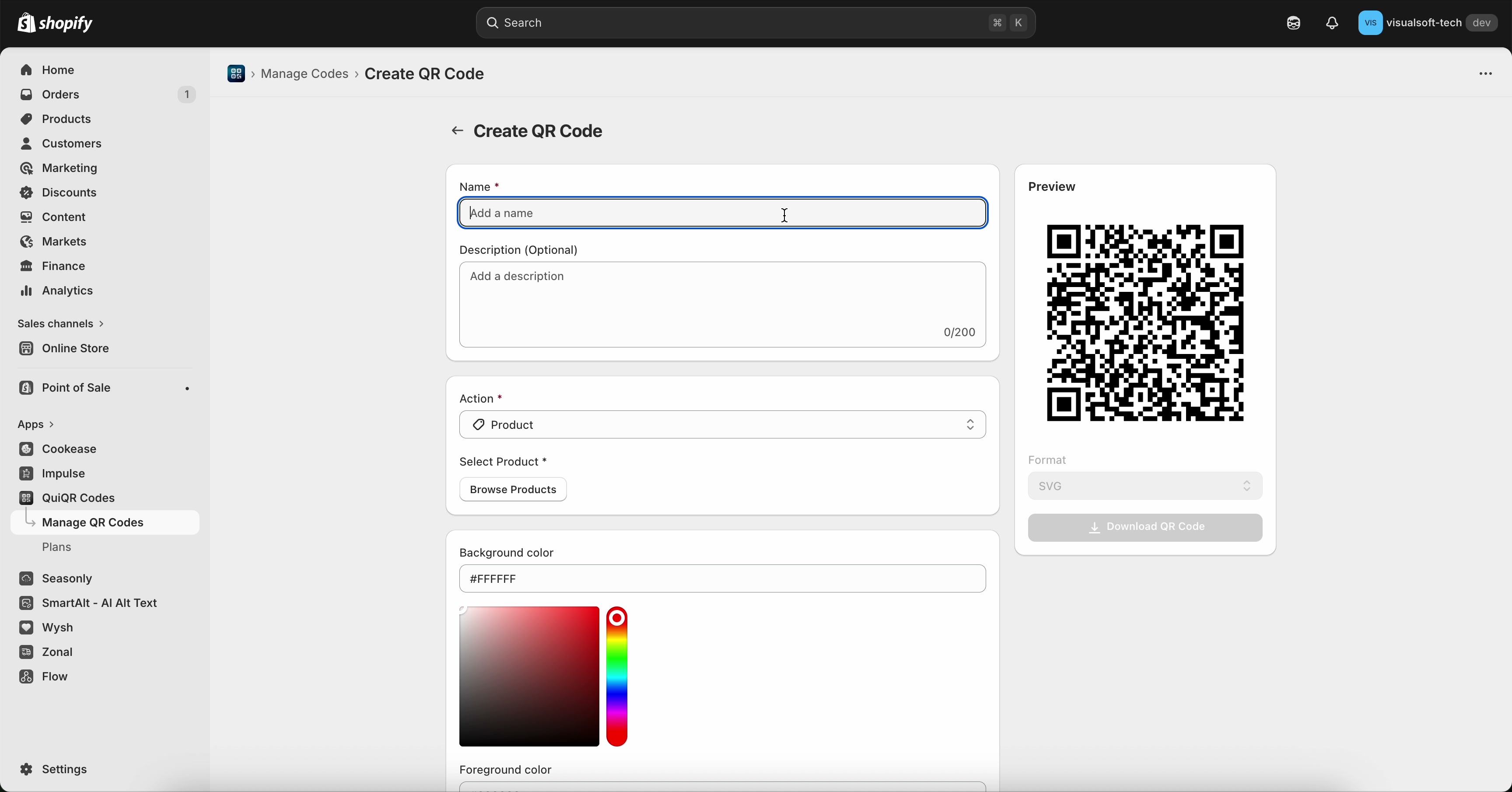
In Name, type a recognisable label (for example: Homepage QR). This helps you find the code later under Manage QR Codes.
Use Description (Optional) to note where the QR code will be used (flyer, packaging insert, store sign, etc.).
The Preview panel updates as you configure your QR code, so you can visually confirm you’re creating the right code before saving.
3. Set the action to Custom Page
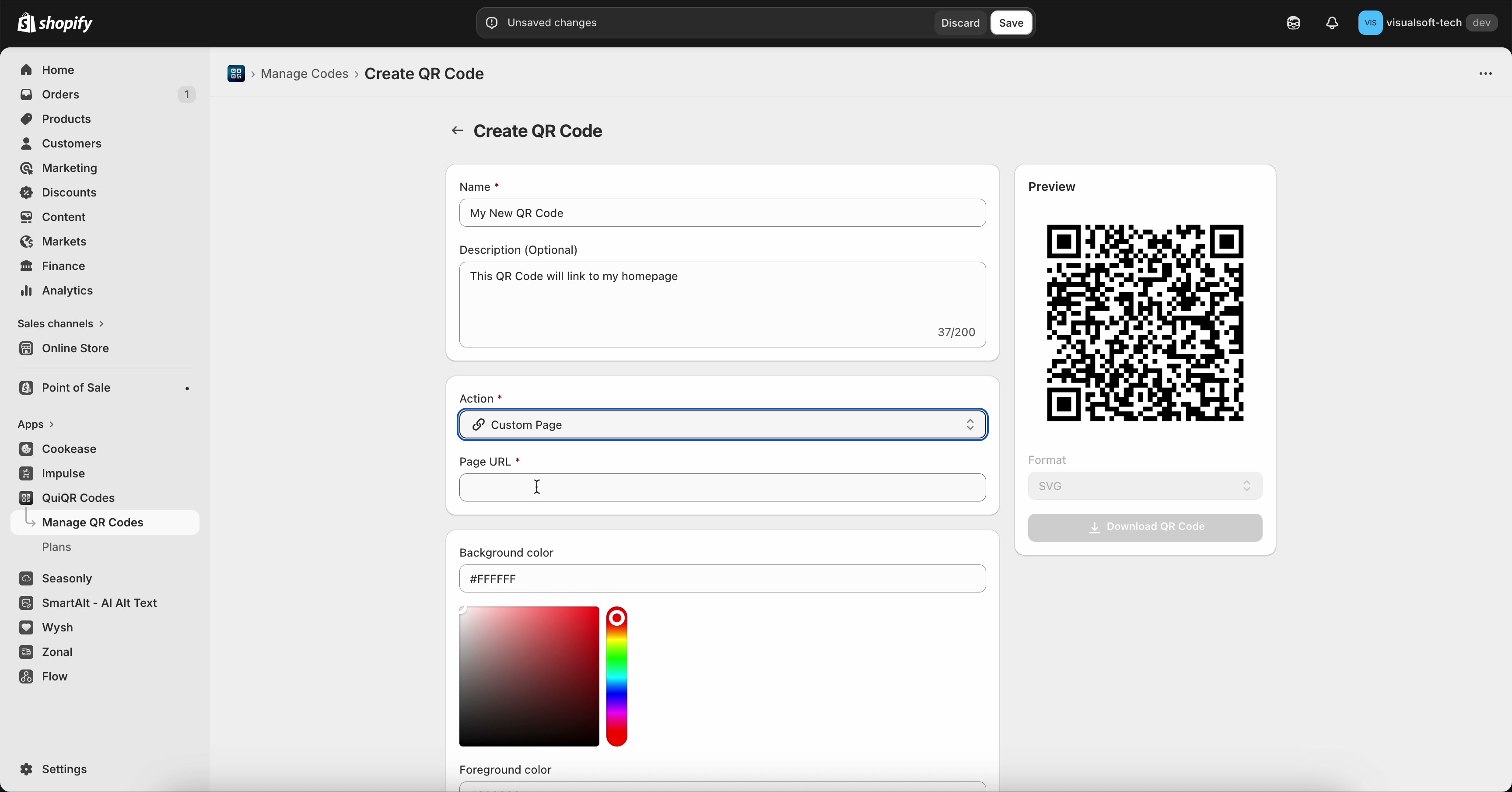
In the Action field, open the dropdown.
Select Custom Page. A Page URL field appears.
4. Paste your custom URL
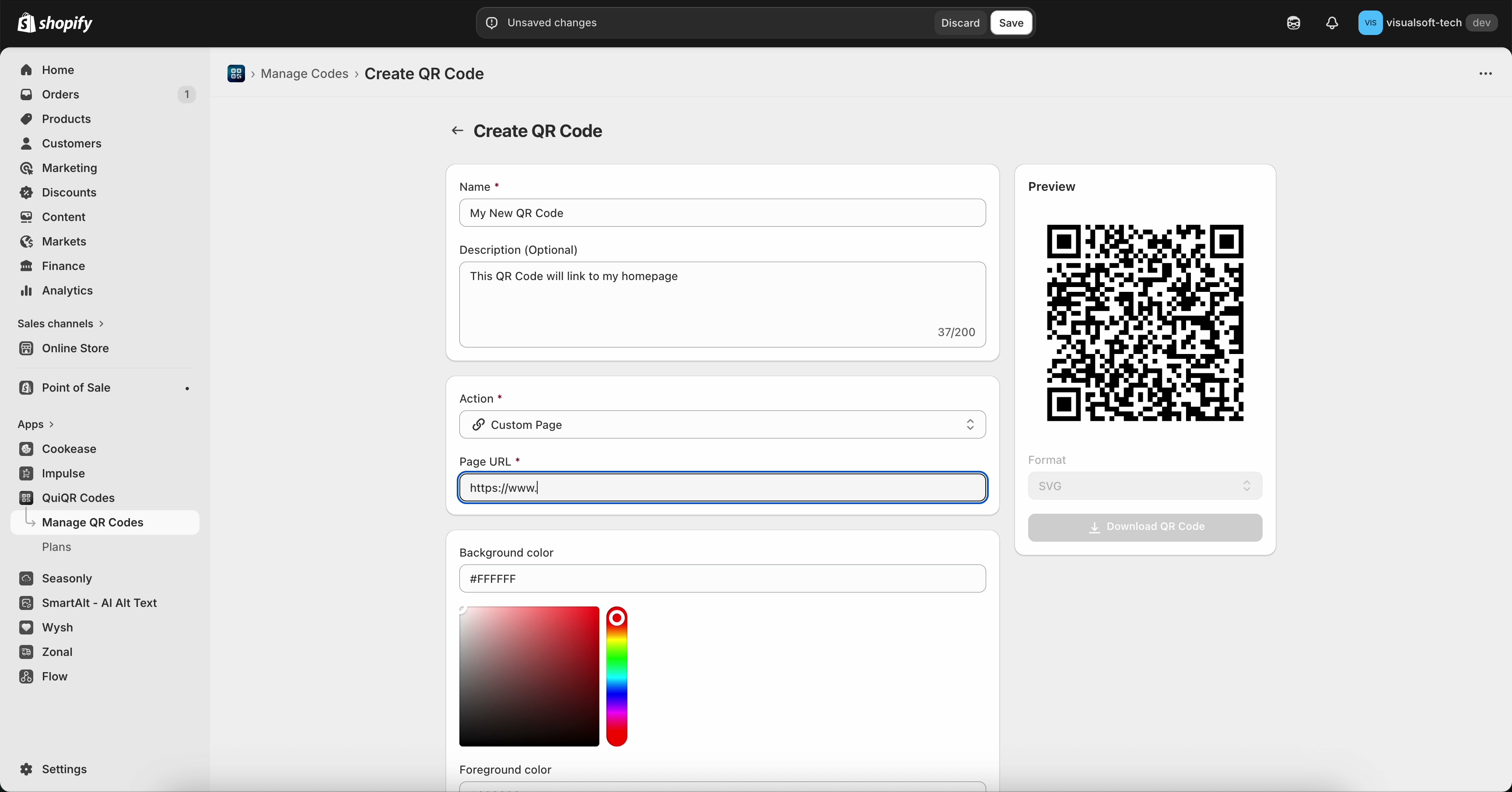
In Page URL, paste the full link you want customers to open (for example, https://www.yourstore.com).
Check the Preview panel on the right to confirm the QR code updates after you enter the URL.
Use a complete URL that includes https:// to avoid scan issues on some devices. If your link is long, consider using a short, trackable link you control before pasting it into Page URL.
5. Review and save
Name is correct and easy to recognise
Action is set to Custom Page
Page URL is correct (no typos)
The Preview looks ready
Select Save in the top-right of the page. If you don’t want to keep your changes, select Discard.
Always test the printed/placed QR code with a phone camera before distributing it widely. A small typo in Page URL will send customers to the wrong place.
What happens after saving?
After you save, your new QR code will be available under Manage QR Codes. From there, you can return to it later to manage your QR code campaign and access the code for downloading/usage.