Bulk product QR codes
Generate product QR codes in bulk
QuiQR Codes lets you create QR codes for multiple products directly from the Products area in your Shopify admin. This is the fastest way to create a matching batch without opening the Create QR Code form for each product one by one.
Plan availability: bulk product QR code generation is available on the app’s Core plan.
Due to a Shopify limitation, you can generate a maximum of 50 QR codes at one time. If you need more, repeat the process in additional batches.
Before you start
Make sure you are working in the correct Shopify store.
Only select products you want to create new QR codes for in this batch.
If you want to use advanced options like Enable UTM tracking or Custom logo, review those settings before generating.
The bulk generator creates product QR codes from the Shopify Products list. After generation, you can manage the new codes from Apps → QuiQR Codes → Manage QR Codes.
Create QR codes for multiple products
In your Shopify admin, select Products from the left-hand navigation.
Use the checkboxes next to each product to choose the items you want to include in the batch.
Once selected, Shopify shows the bulk action toolbar above the product list.
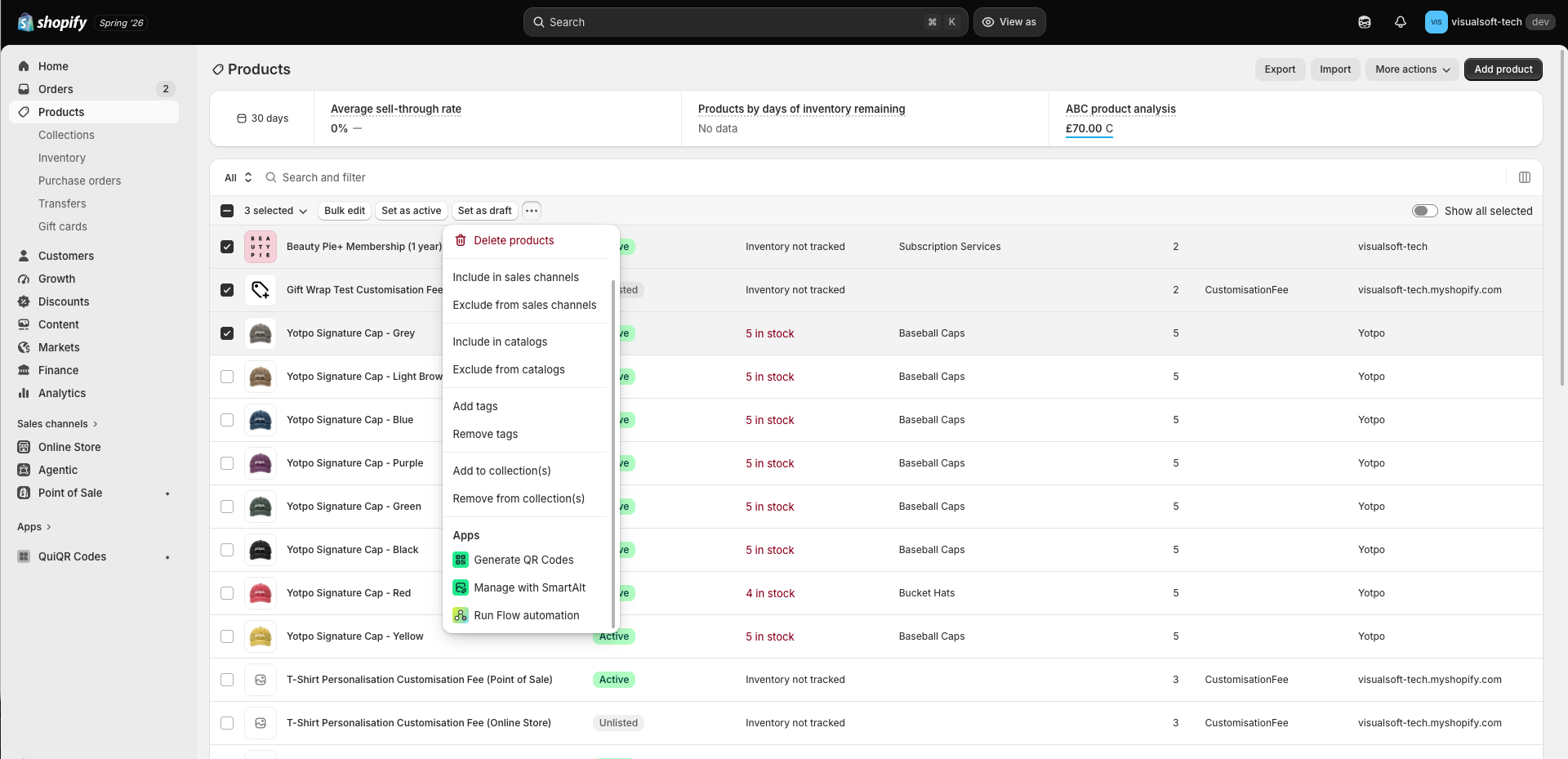
In the bulk action toolbar, select the more actions menu (three dots).
Scroll to Apps, then select Generate QR Codes.
The Generate QR Codes pop-up opens and confirms how many products are selected.
Use Background colour and Foreground colour to set the look of the batch.
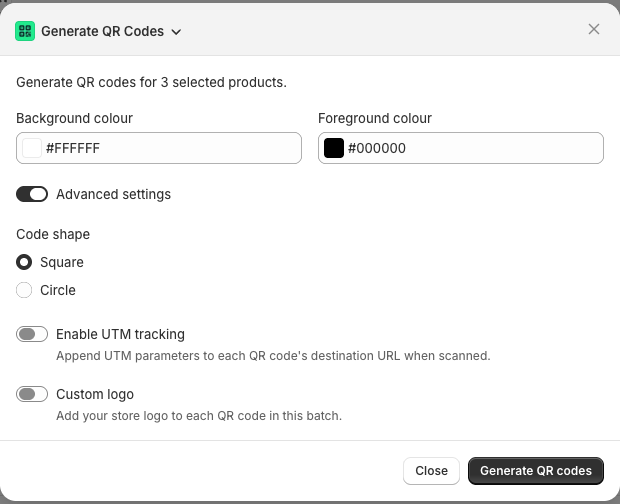
Turn on Advanced settings to show more options for the batch.
From here, you can:
change Code shape to Square or Circle
turn on Enable UTM tracking
turn on Custom logo
When your settings are ready, select Generate QR codes.
QuiQR Codes creates one product QR code for each selected product using the options from the pop-up.
What the advanced options do
Code shape
Use Code shape to choose between Square and Circle. This changes the visual style of the QR code pattern for the whole batch.
Enable UTM tracking
Enable UTM tracking appends campaign parameters to each QR code’s destination URL when it is scanned.
This is useful if you want to measure scans in analytics tools. In QuiQR Codes, the related UTM fields use the labels:
Campaign source (utm_source)
Campaign medium (utm_medium)
Campaign name (utm_campaign)
Campaign term (utm_term)
Campaign content (utm_content)
Custom logo
Custom logo lets you brand your QR codes with your store logo.
After generation
After the batch is created, open Apps → QuiQR Codes → Manage QR Codes to review and manage your new codes.
In the QR Code Manager, you can identify codes by:
Name
Action
Info
Status
Last Updated
If needed, you can open an individual code later to refine its settings from Edit QR Code.
Best practices
Keep strong contrast between Background colour and Foreground colour for reliable scanning.
Test one of the generated codes on a phone before printing or sharing the full batch.
Split large jobs into logical groups if you are working near the 50-product limit.
Use consistent UTM naming so analytics reports stay clean and easy to compare.
If you only need one product QR code, the standard QR code to a product page workflow gives you more step-by-step control over the individual setup.
Related guides
Create a single QR code that links directly to one Shopify product.
Learn how background colour, foreground colour, and code shape work in QuiQR Codes.
See how to add campaign tracking parameters to QR codes.
Find out how logo upload works and how to enable it on your account.